
A Short-Form Video Workflow Using Sound Buttons Max
A repeatable CapCut / Premiere-style workflow: pick the clip on Sound Buttons Max, cut picture to the sting, and export without a messy audio track.
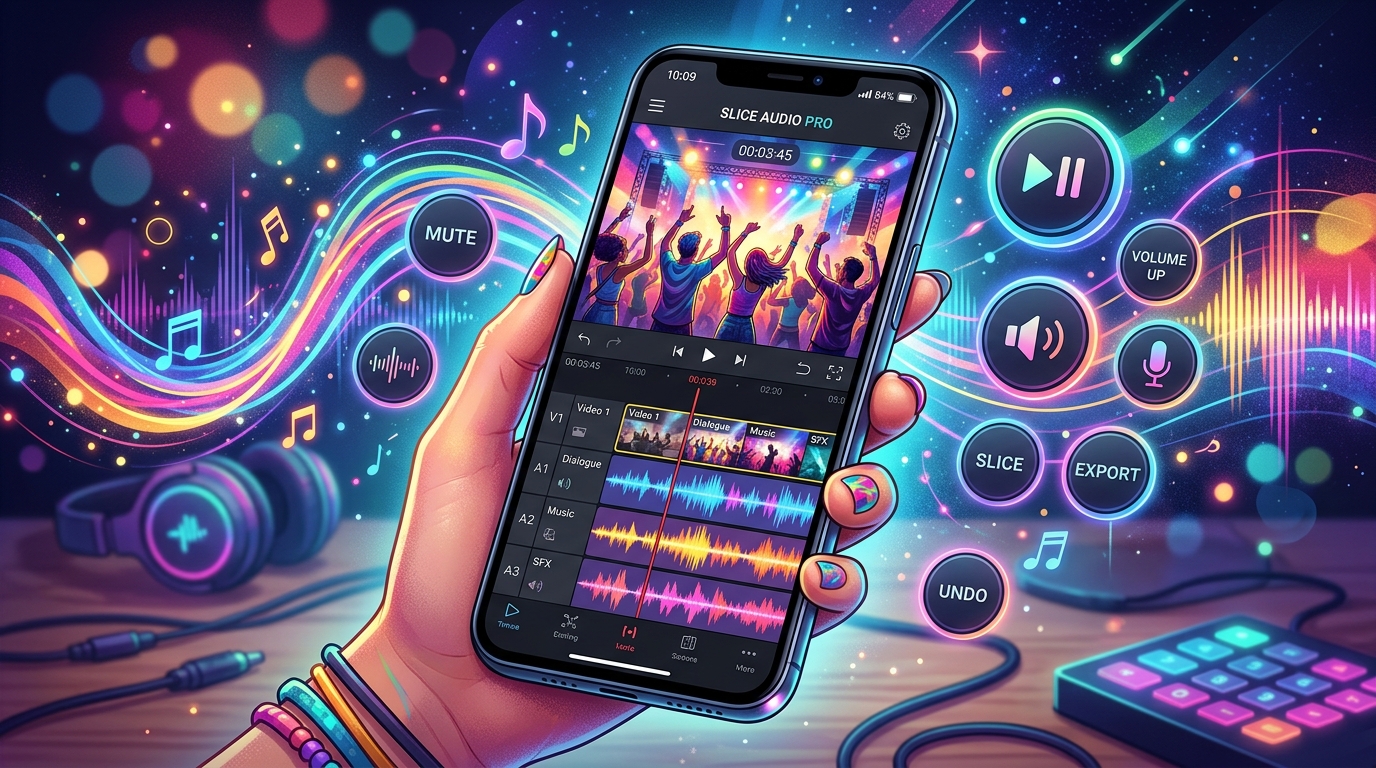
Shorts, Reels, and TikTok-length videos live or die on the first second. A sound button is often that first second. Here is a workflow that does not require a unique plugin, only Sound Buttons Max and whatever editor you already use.
1. Pick the sting before you cut picture
Search or browse, play the button, download the MP3. If you cut the video first and hunt for audio later, you will force a joke onto a cut that does not want it. The sting should tell you where the cut is.
2. Drop audio on a dedicated track
Do not dump memes onto the same track as voiceover. You will need to duck, mute, or replace the sting later. One track for VO, one for music, one for buttons. That layout takes ten seconds and saves an hour.
3. Cut picture to the transient
Most of these files have an obvious attack: the boom, the word, the laugh. Put the playhead on that sample and cut the video there. If the face or caption changes on that frame, the joke reads. If the sting hangs over a still image with no change, it feels stuck on.
4. One sting per beat
A 15-second video can hold two, maybe three buttons. More than that and you are making a compilation of noise. If you want a second joke, leave a breath. Silence is part of the timing.
5. Export a loudness-safe file
Keep peaks out of the red. The app you upload to will compress. A clean, slightly quieter sting survives that better than a slammed one.
6. Keep the source URL
Paste the Sound Buttons Max sound URL in your project notes. When a collaborator asks “what was that,” you send a page instead of a mystery file named audio (3).mp3.
That is the workflow. Choose on the site, cut to the hit, protect the fader, and stop there. The button is a tool for timing, not a substitute for a script.